
0
ZTE Blade A31 Plus P963F80 Dump File Dead Boot Repair
ZTE Blade A31 Plus P963F80 Dump File – Firmware, Flashing, and Repair
When it comes to restoring or repairing a smartphone, having the right dump file is crucial. For users of the ZTE Blade A31 Plus P963F80, the dump file plays an important role in fixing issues such as boot loops, software crashes, or devices stuck on the logo. In this comprehensive guide, we provide everything you need to know about the ZTE Blade A31 Plus P963F80 dump file, including its purpose, benefits, download process, and step-by-step usage instructions.
What is a ZTE Blade A31 Plus P963F80 Dump File?
A dump file is a complete backup or raw image of a smartphone’s firmware and partitions. For the ZTE Blade A31 Plus P963F80 it contains vital system data including:
-
Bootloader
-
Recovery image
-
System partition
-
User data partition
-
NVram and IMEI information
This file is used by technicians, developers, and advanced users to restore a dead or malfunctioning ZTE Blade A31 Plus P963F80, ensuring the device returns to its original working condition.
Why Do You Need a Dump File for ZTE Blade A31 Plus P963F80?
The ZTE Blade A31 Plus P963F80 dump file is essential for a variety of repair and restoration scenarios:
-
Fix Boot Loop Issues – If the device is stuck in a continuous restart cycle.
-
Unbrick the Phone – Helps recover from a “hard brick” where the phone does not boot at all.
-
Restore Stock Firmware – Returns the device to factory settings.
-
Repair IMEI or Network Issues – Some partitions in the dump file contain important IMEI data.
-
Data Recovery – Extract lost data from corrupted partitions.
-
Flashing Custom ROMs – Backup original firmware before experimenting with custom ROMs.
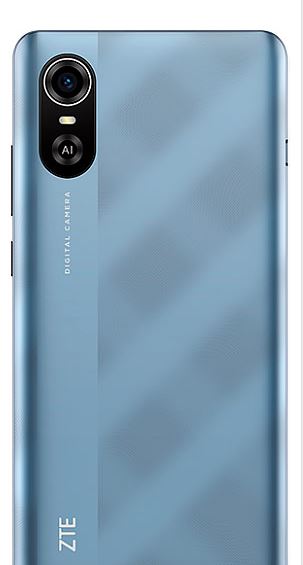
ZTE Blade A31 Plus P963F80 Dump File Dead Boot Repair Pandora Tool
Call: 01884721503 – Bkash 01854302180
How to Download ZTE Blade A31 Plus P963F80 Dump File
Downloading the ZTE Blade A31 Plus P963F80 dump file should always be done from trusted sources. Using a corrupted or incompatible file can permanently damage the device.
Steps to Download:
-
Visit a reliable firmware database or professional service forum.
-
Search for the ZTE Blade A31 Plus P963F80 dump file by model number.
-
Ensure that the file matches your device’s build number and chipset.
-
Download the compressed file (usually in
.raror.zipformat). -
Extract the file to a safe location on your computer.
⚠️ Important Note: Always scan downloaded files for malware before use.
How to Use ZTE Blade A31 Plus P963F80 Dump File
Once you have the dump file, it can be used to flash and repair the device. Here’s a detailed guide:
Requirements:
-
A Windows PC or laptop
-
USB drivers for ZTE installed
-
SP Flash Tool or Research Download Tool (depending on chipset)
-
A USB cable
-
The ZTE Blade A31 Plus P963F80 dump file
Flashing Procedure:
-
Install USB Drivers on your computer.
-
Open SP Flash Tool (or equivalent software).
-
Load Scatter File – This file is included in the dump package.
-
Connect Device – Power off the ZTE Blade A31 Plus P963F80 and connect via USB.
-
Select Flashing Options – Choose “Download Only” to avoid erasing IMEI.
-
Start Flashing – Click the “Download” button in SP Flash Tool.
-
Wait for the process to complete and disconnect the device.
-
Reboot the Phone – The device should now boot normally.
Common Problems Solved with ZTE Blade A31 Plus P963F80 Dump File
The dump file is useful in fixing several common issues:
-
Stuck on Logo after a failed update.
-
Dead Boot Repair where the device doesn’t power on.
-
IMEI Null or Invalid caused by corrupted NVram.
-
Slow Performance due to software glitches.
-
Corrupted System Partitions preventing normal operation.
Precautions Before Using Dump File
-
Always back up personal data before flashing.
-
Make sure the battery is at least 70% charged.
-
Double-check the compatibility of the dump file with your phone model.
-
Do not interrupt the flashing process once started.
-
Use genuine USB cables to avoid connectivity issues.
Alternative Methods to Repair ZTE Blade A31 Plus P963F80
While the dump file is the most reliable solution, there are other methods that can help fix minor issues:
-
Factory Reset via Recovery Mode.
-
OTA Firmware Update if the device is functional.
-
Stock ROM Flashing using official firmware packages.
However, if the phone is hard-bricked or completely unresponsive, the dump file remains the best solution.
ZTE Blade A31 Plus P963F80
The ZTE Blade A31 Plus P963F80 dump file is an essential tool for technicians and advanced users who want to repair, restore, or unbrick their device. By carefully downloading and flashing the correct file, you can resolve a wide range of software-related problems and bring your phone back to life.
With the right knowledge, tools, and precautions, the dump file becomes a powerful solution for ensuring that your ZTE Blade A31 Plus P963F80 continues to function smoothly.